Live Preview
In the wild
Appearance
Pattern Style
Colors
Logo
Mosaic
Higher levels allow the QR code to be scanned even if damaged or covered (e.g., by a logo), but result in a denser code.
Quiet zone (margin) around the QR matrix. ISO specification recommends at least 4 modules for reliable scanning. Applies to image exports (wallet cards retain a fixed 4-module quiet zone).
A QR code generator that stays free
Make a QR code out of your own picture, such as a logo or a product photo. There is no AI and no upload: your image is blended into the code in your browser.
Read the no-ads pledgeAbout Image QR Code Generator
Key Features
- Your own picture is tiled into the QR code, not an AI rendering of it
- Halftone keeps more image detail, and Tiles is bolder and scans from further away
- Every module keeps its dark or light value, so error correction is left for damage
- The image is processed on your device and is never uploaded
- Download as PNG, JPEG, WebP or SVG
How to Make an Image QR Code
Put a picture into a QR code in four steps, all in your browser.
Enter your link
Type or paste the address the code should open. Any QR content works, because the picture only recolours the modules.
Add your image
In the Logo section below the code, open Mosaic and choose a picture. It is read on this device and never sent anywhere.
Pick halftone or tiles, then the contrast
Halftone shows more of the picture. Tiles is bolder. Raise the contrast if the scan badge says the code is fragile.
Check the scan badge and download
Wait for “Scans reliably”, download the code, and test it with a phone before you print it.
Examples
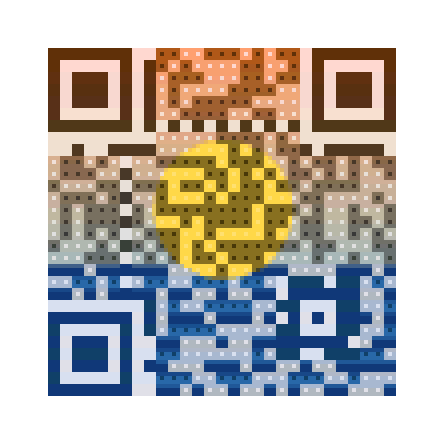
Halftone: each module holds a 3 by 3 patch of the picture, so more detail shows. 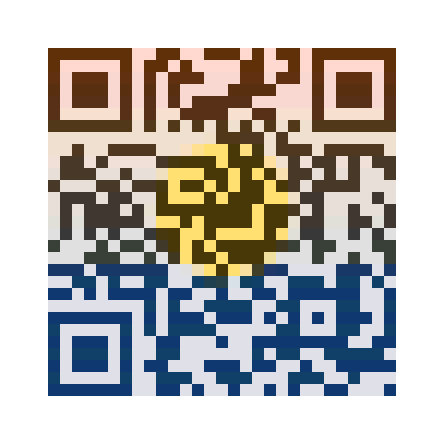
Tiles: one color per module, which is bolder and scans from further away.
Both are working codes for qrcraftly.com, made from a picture drawn in code. No AI was used.
Frequently Asked Questions
A phone sees an ordinary QR code. Every module is still dark or light, just painted in a color from your picture, so the camera reads it like a black and white code.
The data is not changed to draw the picture, so error correction is still there to cover scuffs and glare. It works with any content: a link, Wi-Fi details or a contact card.
- Packaging where the product photo is the code.
- A poster, flyer or invitation that looks designed rather than stamped.
- A shop window or menu code that matches the artwork around it.
- Print bigger than a plain code: at least 3 cm (1.2 in), more for anything read from across a room.
- Pictures with clear light and dark areas work best. Flat, mid-gray pictures give the code less to work with.
- Use Tiles for codes scanned from a distance and Halftone when the picture matters more.
- Wait for the scan badge to say “Scans reliably”. “Fragile” means it may fail in print or on a poor camera.
- If it is fragile, raise the Mosaic contrast first.
- Do not shrink the downloaded file in a design tool; download a larger size instead.
- Print a test copy and scan it with an iPhone and an Android phone before printing a batch.
Your picture is read by your browser, reduced to one color per module and forgotten when you close the tab. It is never uploaded, and saved style templates leave it out.
How QRCraftly keeps data in your browser